1. Getting Started
Install the Amadeus Wallet extension from the Chrome Web Store, pin it to the toolbar and set up your first wallet.
Installation
Prerequisites
- Google Chrome
- An internet connection
Installation Steps
- Install from the Chrome Web Store
- Open the Amadeus Wallet page on the Chrome Web Store
- Click "Add to Chrome"
- Review the permissions the extension requests, then confirm
- Onboarding opens automatically
- Right after installation, the extension opens its welcome screen in a new tab
- Pin the extension (recommended)
- Click the puzzle icon (extensions menu) in Chrome's toolbar
- Find Amadeus Wallet in the list
- Click the pin icon next to it
- The wallet icon now stays in your toolbar. The onboarding tab shows the same three steps when you finish setting up.
First Launch
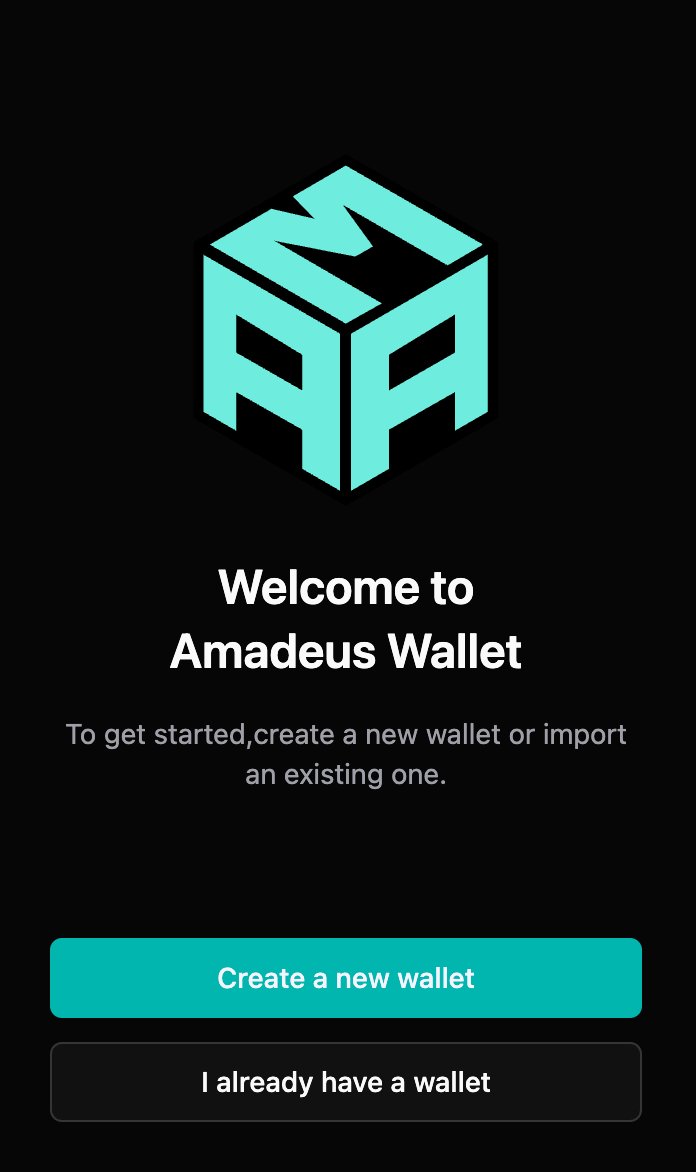
The welcome screen says "Welcome to Amadeus Wallet" and offers two options:
- Create a new wallet: generates a new wallet with a 12-word recovery phrase. See Creating a New Wallet.
- I already have a wallet: restores a wallet from a recovery phrase, a private key or an encrypted
.amadeusbackup file. See Importing an Existing Wallet.
When you finish setting up in the onboarding tab, click "Open Wallet". The tab closes and the wallet opens in Chrome's side panel.
Opening the Wallet
Click the Amadeus Wallet icon in the toolbar. By default the wallet opens in Chrome's side panel. You can switch to a popup or a separate window in Preferences.
From the wallet you can:
- See your balance and recent activity on the dashboard
- Send and receive tokens
- Move between the dashboard, Staking and History with the icons in the bottom bar
- Click your account name in the header to switch or add accounts
- Copy your address, open Settings, or lock the wallet from the header