2. Creating a New Wallet
Create a new Amadeus wallet in the Chrome extension, save its 12-word recovery phrase and verify it.
Overview
Creating a wallet generates a new 12-word recovery phrase. The phrase is the master backup of your account: anyone who has it controls your funds, and with it you can restore the account if you lose your password or your device. Amadeus cannot recover it for you.
New phrases use the Standard (EIP-2333) derivation. See Recovery phrase derivations for how this differs from phrases created in extension 1.6.2 or earlier.
The setup takes you through four screens: name, password, save the phrase and verify it. Dots at the top of the screen show your progress.
Step-by-Step Guide
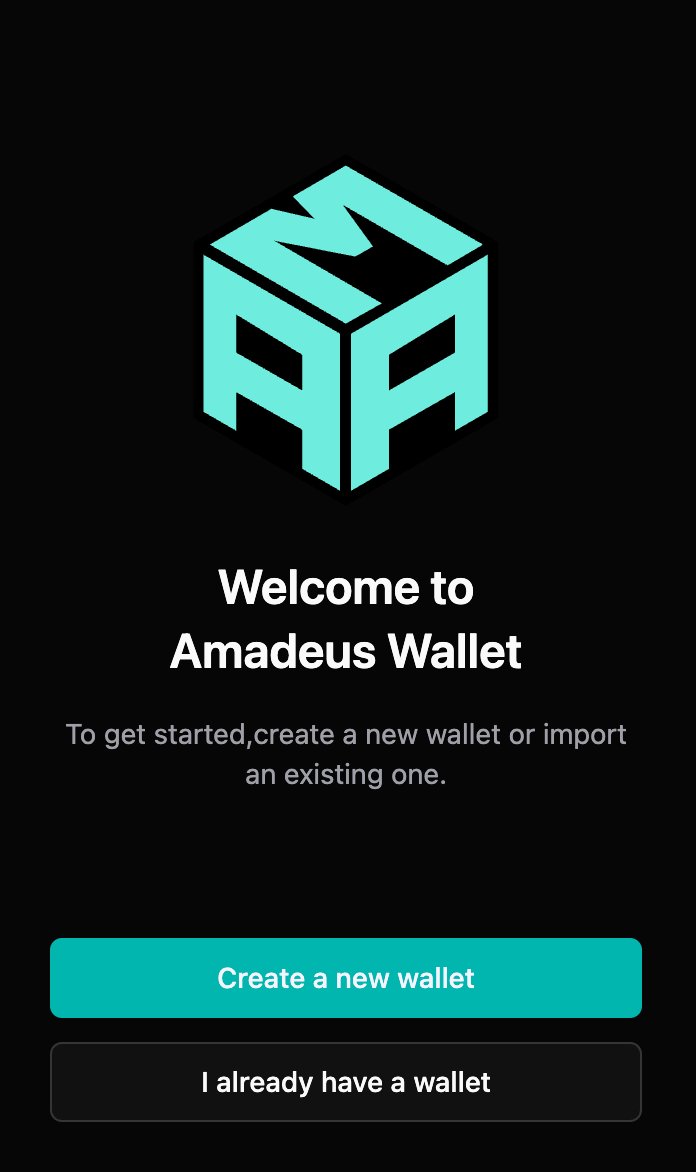
Step 1: Choose "Create a new wallet"
On the welcome screen, click "Create a new wallet".
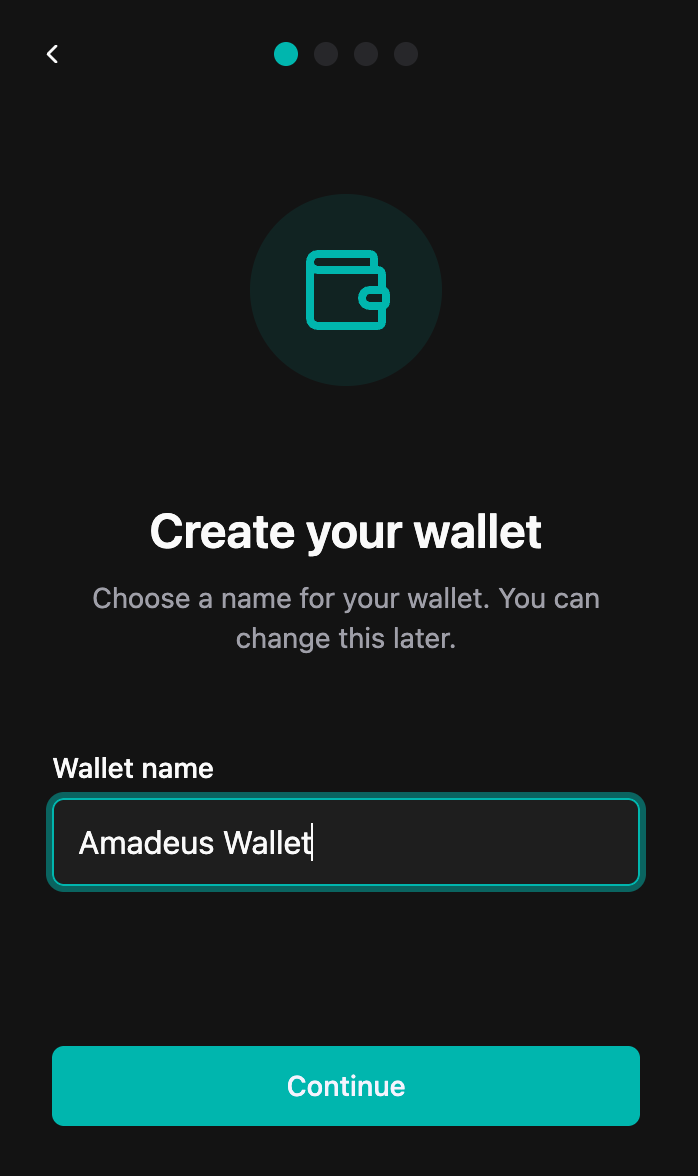
Step 2: Name your wallet
- On the "Create your wallet" screen, enter a name in Wallet name (for example "My Main Wallet")
- Click "Continue"
The name is only a label stored in the extension. You can rename the account later in Settings → Manage Account.
Step 3: Set a password
On the "Secure your wallet" screen:
- Enter a password. It must have:
- 8 to 128 characters
- at least one uppercase letter
- at least one lowercase letter
- at least one number
- at least one special character
- Enter it again in Confirm password
- Click "Continue"
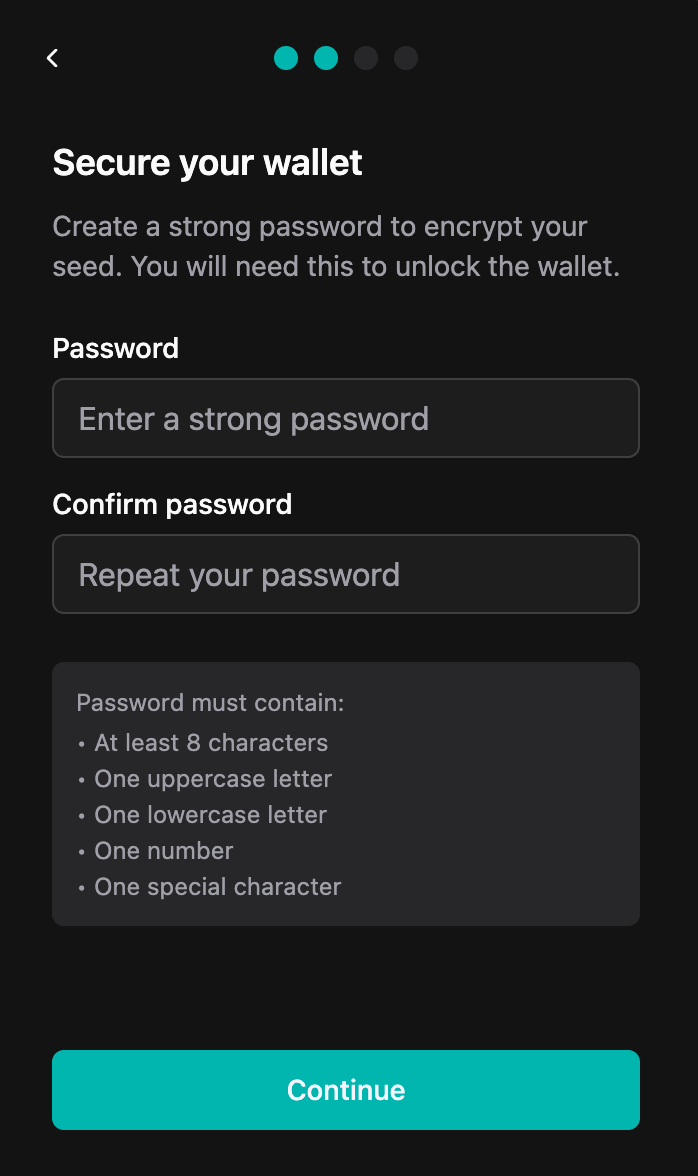
The password encrypts your wallet on this device and unlocks it each time you open the extension.
⚠️ Important: Amadeus cannot recover or reset your password. If you forget it, you have to remove the wallet from this browser and restore it from your recovery phrase or a backup file. See Forgot password.
Step 4: Save your recovery phrase
This is the most important step.
- On the "Save your recovery phrase" screen, make sure no one can see your screen, then click "Tap to reveal"
- Write down the 12 words in order. You can also use the copy button next to Recovery Phrase (12 words).
- Optional: click "Show derived keys" to see the account's Public Key (your address) and Private Key (Base58). You do not need to save the private key if you have saved the phrase.
- Click "I saved my recovery phrase". The button stays disabled until you reveal the phrase.
⚠️ Critical: Without the recovery phrase (or a backup file), you cannot restore this account. Store it offline and never share it. Anyone who asks for it, including someone claiming to be Amadeus support, is trying to steal your funds.
Step 5: Verify your recovery phrase
The "Verify your recovery phrase" screen shows the 12 numbered positions with the words hidden. Three positions, chosen at random, have an empty box.
- Type the missing words for those three positions
- Click "Confirm". The button stays disabled until all three boxes are filled.
If a word is wrong, you will see "One or more words are incorrect. Please check and try again." Click "Go back and check" to see the phrase again.
Step 6: You're all set
The extension shows "Creating your wallet..." while it encrypts and saves the account, then "You're all set!"
- If you set up the wallet in the onboarding tab, click "Open Wallet". The tab closes and the wallet opens in the side panel. The tab also shows how to pin the extension to the toolbar.
- If you set up the wallet in the popup or side panel, click "Get Started" to go to the dashboard.
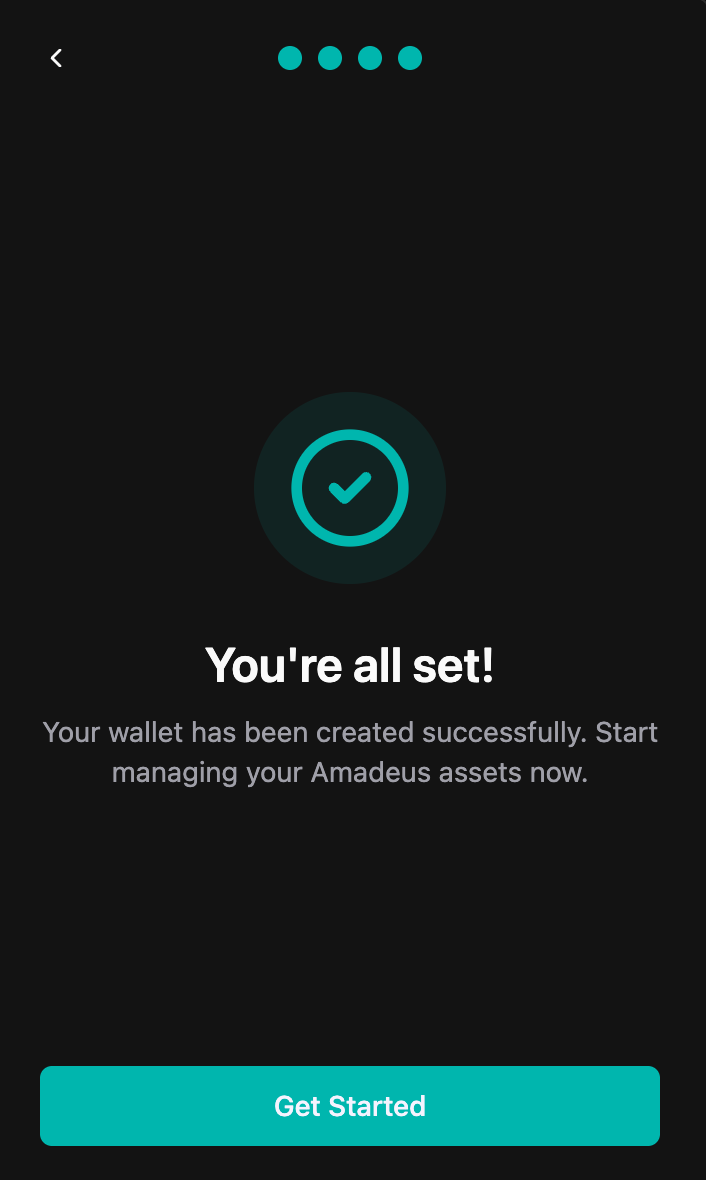
The wallet is unlocked and ready to use. Your address is shown in the header, and you can copy it from there or from the Receive screen.
If creation fails, you will see an error and a "Back to onboarding" button to start again.
Security Best Practices
Recovery phrase
- ✅ Write the 12 words on paper, in order, and keep the copy somewhere safe
- ✅ Consider keeping a second copy in a separate secure place
- ✅ Also export an encrypted backup file, which holds every account in the wallet
- ❌ Never share your recovery phrase or private key with anyone
- ❌ Never store the phrase unencrypted online (screenshots, cloud notes, email, chat)
- ❌ Never type your phrase into a website
Password
- ✅ Use a password you do not use anywhere else
- ✅ Store it in a password manager
- ❌ Never share your password
Troubleshooting
I forgot my password
- The password cannot be reset or recovered. Restore the wallet from your recovery phrase, private key or backup file as described in Forgot password.
I lost my recovery phrase
- While you can still unlock the wallet, reveal it again in Settings → Security & Privacy → Reveal Recovery Phrase (requires your password), and export a backup file.
- If you can no longer unlock the wallet and have no phrase, private key or backup file, the account cannot be recovered.
I want another account
- You do not need to create a second wallet. Click your account name in the header to open Accounts, then Add account to create or import more accounts in the same wallet. See Managing Accounts.