3. Importing an Existing Wallet
Restore an Amadeus wallet in the Chrome extension from a 12-word recovery phrase, a Base58 private key or an encrypted .amadeus backup file.
Overview
If you already have an Amadeus wallet, you can restore it in the extension in one of three ways:
| Method | What you need | What it restores |
|---|---|---|
| Recovery Phrase | Your 12-word recovery phrase | One account |
| Private Key | Your Base58-encoded private key (the 64-byte key shown as "Private Key (Base58)") | One account |
| Backup File | An encrypted .amadeus file exported from Amadeus Wallet, and its password | Every account in the backup |
This page covers the first wallet in a fresh install. To add more accounts to a wallet you already have, use Add account instead (see Managing Accounts).
Step-by-Step Guide
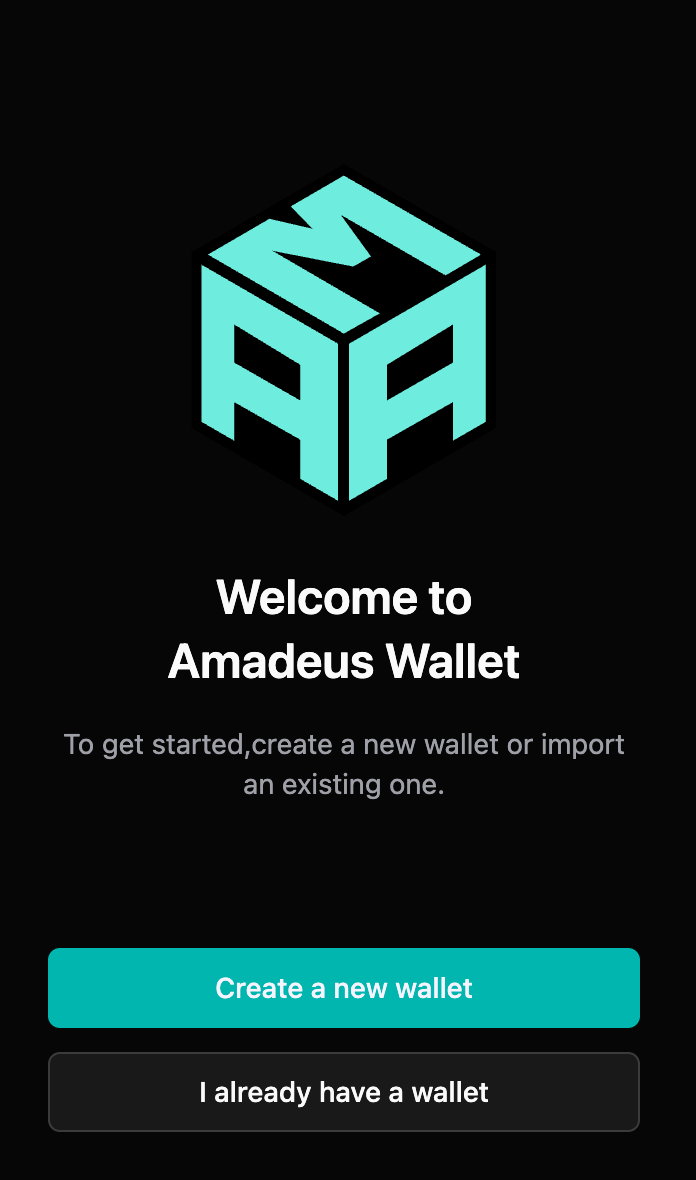
Step 1: Choose "I already have a wallet"
On the welcome screen, click "I already have a wallet".
Step 2: Choose an import method
On the "Import your wallet" screen, pick one:
- Recovery Phrase: "Import using your 12-word recovery phrase"
- Private Key: "Import using a base58-encoded private key"
- Backup File: "Restore all accounts from an encrypted .amadeus file"
Then follow the matching section below.
Import with a recovery phrase
- On "Enter recovery phrase", type the 12 words in order, one per box. If you paste the whole phrase into any box, the extension fills all 12.
- Click "Continue". The button shows "Checking accounts…" while the wallet checks the network.
- Choose or confirm your account (see below), then click "Continue".
- Set a password (see Set a password).
If the words are not a valid phrase, you will see "Invalid recovery phrase. Please check your words and try again."
Choose your account (Standard or Legacy)
A recovery phrase can open two different addresses:
- Standard account: the EIP-2333 derivation. The extension has used it for new and restored phrases since version 1.6.3, released on 8 October 2026.
- Legacy account: the older derivation. Phrases created or restored in extension 1.6.2 or earlier usually open this address.
The extension checks both addresses for balances and transactions on the network you are using (Mainnet by default) and shows them as two options. Each option has a short address and a badge: Has history, No history or Couldn't check. What happens next depends on the result:
| Result | Screen title | What the wallet does |
|---|---|---|
| One address has history and the other has none | Confirm your account | Selects the address with history. Pick the other one if that is the address your wallet showed before. |
| Neither address has history | Confirm your account | Selects the Standard account. Pick Legacy if your wallet showed that address before. |
| Both addresses have history | Choose your account | Selects nothing. Pick the account you want to import. |
| A check failed, for example because the network could not be reached | Choose your account | Shows a warning and selects nothing. Pick the address your wallet showed before, or click "Back" and try again. |
Compare the addresses with the one your old wallet or the explorer showed. If you restore an older phrase and land on an empty account, you probably picked the wrong one. See Recovery phrase derivations for the full explanation.
Import with a private key
- On "Enter private key", paste your key into Private Key. This is the 64-byte, Base58-encoded value that the extension shows as "Private Key (Base58)" (Settings → Security & Privacy → Reveal Private Key).
- Click "Continue".
- Set a password (see Set a password).
If the key is not valid, you will see "Seed must be a valid base58 string representing 64 bytes". A private key opens exactly one address, so there is no account picker.
This screen only accepts the 64-byte key. To import a raw 32-byte Base58 secret key, set up the wallet first (with a new wallet or another method), then use Add account → Import, which accepts both. See Managing Accounts.
Set a password
The recovery phrase and private key methods both end with the "Secure your wallet" screen:
- Enter a password with 8 to 128 characters, including at least one uppercase letter, one lowercase letter, one number and one special character
- Enter it again in Confirm password
- Click "Continue"
This password protects the wallet on this device only. It does not need to match a password you used elsewhere.
Restore from a backup file
Use this to restore a .amadeus file exported from the extension or from the Amadeus mobile wallet. It restores every account in the file at once.
- On "Choose your backup file", click the drop area to browse, or drag the file onto it. The file name appears when it is accepted.
- Click "Continue".
- On "Unlock your backup", enter the Backup password, the password you set when you exported the file.
- Click "Restore wallet".
There is no separate password step: the backup password becomes your wallet password in this browser. The success screen confirms how many accounts were restored, for example "Restored 3 accounts from your backup. Unlock with your backup password from now on." If some entries in the file could not be read, it also says how many were skipped.
Common messages:
- "This file isn't an Amadeus wallet backup. Choose the .amadeus file you exported."
- "Wrong password for this backup file"
- "This backup has no accounts that can be restored."
- "A wallet already exists in this browser. Reset it before restoring a backup." To add a backup's accounts to an existing wallet instead, use Settings → Backup & Restore (see Backup and Restore).
Finish
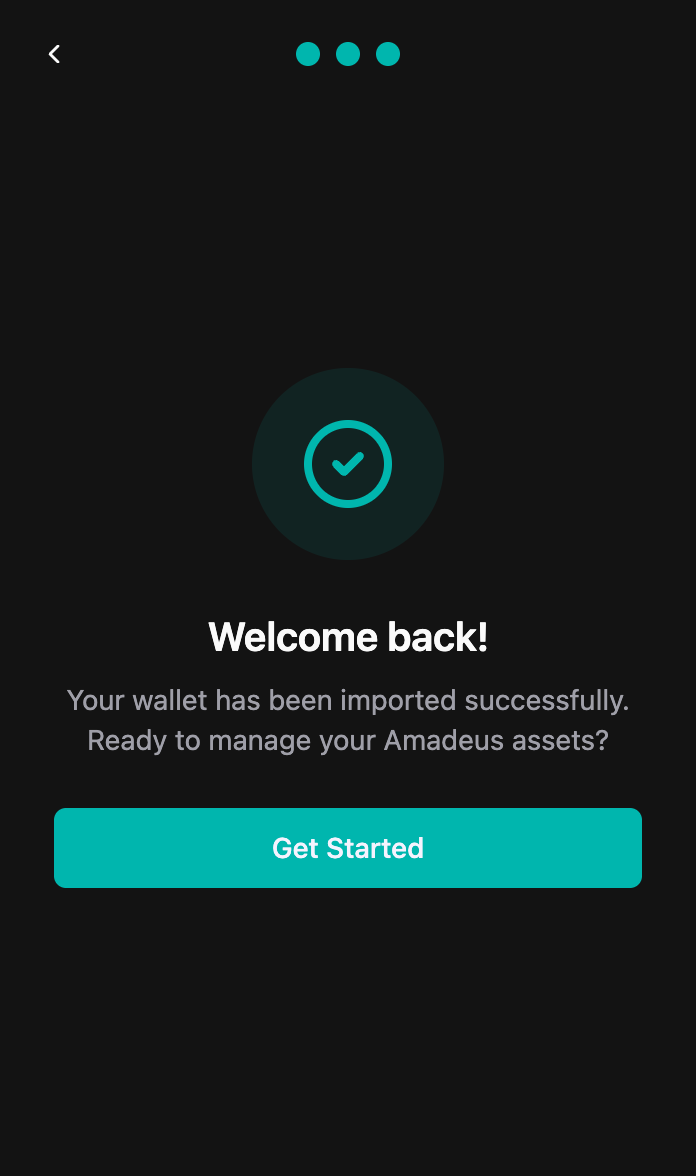
When the import succeeds, you will see "Welcome back!"
- In the onboarding tab, click "Open Wallet" to open the wallet in the side panel.
- In the popup or side panel, click "Get Started" to go to the dashboard.
An account restored from a phrase or private key is named "Imported Wallet". You can rename it in Settings → Manage Account.
Verification
After importing, check that:
- ✅ The address in the header matches the address you expect
- ✅ Your balance appears (it can take a moment to load)
- ✅ You are on the right network (a Testnet badge appears under the header on Testnet)
Troubleshooting
My balance is zero after importing a recovery phrase
- You may have picked the other derivation. Click your account name in the header, then Add account → Import, and enter the same phrase. The picker marks the account you already have as "Already in wallet" and selects the other one. You can then remove the empty account in Settings → Manage Account. See Managing Accounts and Recovery phrase derivations.
- Check that you are on the network where your funds are. See Network Settings.
Balance or history is not showing
- Check your internet connection
- Check the network in Settings → Active Networks
- Wait a moment and refresh the balance on the dashboard
Security Reminders
- ✅ Only import your wallet on a device you trust
- ✅ Keep your device and browser up to date
- ✅ Use a strong, unique password
- ✅ Keep large amounts in a separate account and keep an encrypted backup
- ❌ Never share your recovery phrase, private key or backup password