4. Unlocking Your Wallet
Unlock the Amadeus Wallet extension with your password, configure auto-lock, lock it manually, and what to do if you forget your password.
Overview
Your wallet is encrypted with your password. When it is locked, you need the password to see your accounts, send tokens or approve dApp requests.
When You Need to Unlock
You will see the unlock screen when:
- The wallet locked itself after a period of inactivity (auto-lock)
- You locked it yourself
- You restarted the browser
A newly created or imported wallet starts unlocked.
Unlocking Process
- Open Amadeus Wallet from the toolbar
- On the "Enter password" screen, type your password
- Click "Unlock"
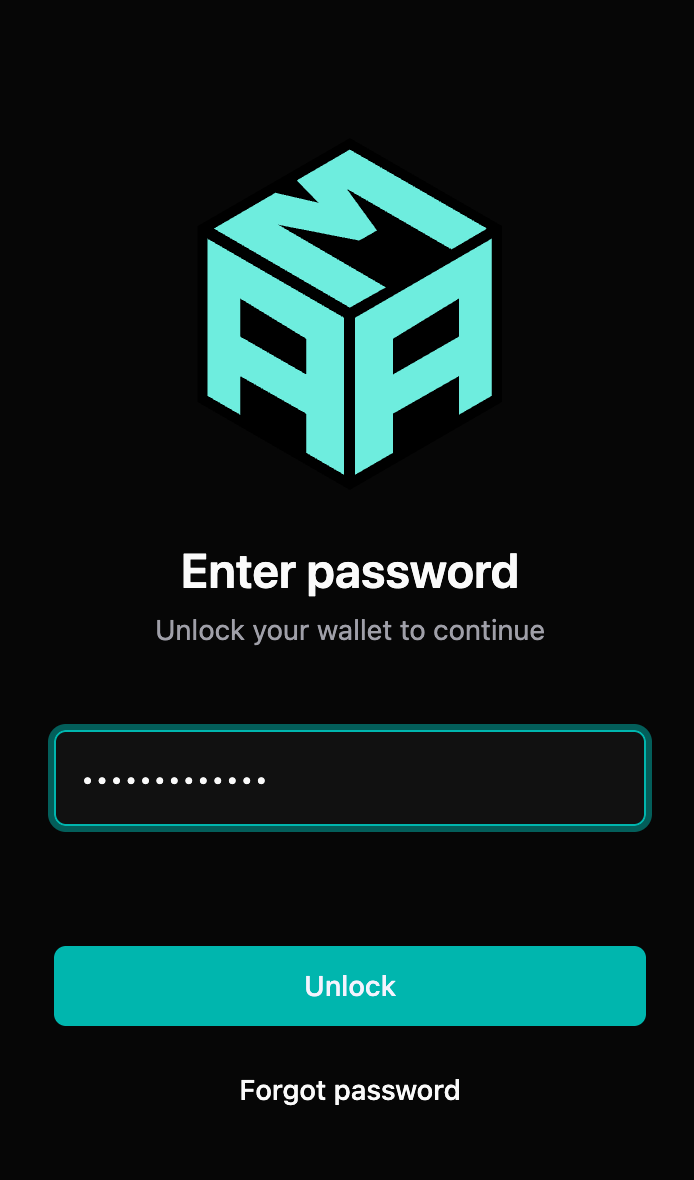
If the password is wrong, you will see "Incorrect password".
After unlocking you go to the dashboard. If a dApp sent a request while the wallet was locked (a transaction to sign, an API key, or a network or account switch), the wallet opens that request first so you can approve or reject it.
Auto-Lock
The wallet locks automatically after a period without activity. The default is 15 minutes. The timer counts:
- while the wallet is open in the side panel, a popup or a window and you do not click, type, scroll or move the mouse in it, and
- after you close every wallet window.
Either way, auto-lock locks the whole wallet and clears its keys from memory, so you need the password again everywhere. Requests a site was still waiting on (a signature, an API key, or a network or account switch) are rejected, and the site has to ask again after you unlock.
To change it:
- Open Settings (gear icon in the header) → Security & Privacy
- Under Security, choose a duration:
- 1 minute
- 5 minutes
- 15 minutes (default)
- 30 minutes
- 1 hour
- Never
⚠️ Security Warning: With "Never", the wallet stays unlocked until you lock it yourself or restart the browser. Anyone with access to your computer can then use it.
Locking Manually
Lock the wallet at any time:
- Click the Lock wallet button (the arrow icon at the top right of the header, next to the Settings gear), or
- Open Settings and click "Lock Wallet" at the bottom
Forgot Password
Amadeus cannot recover or reset your password, and there is no way to reset it with your recovery phrase. The only option is to remove the wallet from this browser and restore it from a backup of your secrets.
Before you start, make sure you have, for every account in the wallet, one of:
- its 12-word recovery phrase,
- its private key, or
- an encrypted
.amadeusbackup file (and that file's password).
Accounts you cannot restore from these are lost. Contacts are not included in backup files, so you will need to add them again.
- On the unlock screen, click "Forgot password". The screen explains "To reset your password, you must reset your wallet. Amadeus cannot recover your password for you."
- Click "Reset & wipe app" (or "Go back" to return to the unlock screen). This deletes all accounts, contacts and settings from this browser, the same as Reset Wallet in Settings, and opens the welcome screen.
- Click "I already have a wallet" and restore with your recovery phrase, private key or backup file. A phrase or private key import asks you to set a new password. A backup file restore uses the backup's password as the new wallet password. See Importing an Existing Wallet.
⚠️ Version 1.9.1: there, "Reset & wipe app" does not remove the encrypted accounts, so the restore fails with "A wallet already exists" (or "A wallet already exists in this browser" for a backup file) and the wallet keeps showing the unlock screen. Update to 1.9.2 or later (the version is shown on
chrome://extensions). If you are still on 1.9.1, remove Amadeus Wallet onchrome://extensions, which deletes all of its data in this browser, install it again from the Chrome Web Store and restore as in step 3.
💡 Tip: While you can still unlock the wallet, export an encrypted backup file. It holds every account in one file and restores them all at once.
Resetting the Wallet from Settings
If you can still unlock the wallet and want to erase it from this browser, use Settings → Security & Privacy → Reset Wallet → "Confirm Reset". This permanently deletes all accounts, contacts and settings stored in the extension. Back up your recovery phrases or export a backup file first.
Security Best Practices
- ✅ Use a strong, unique password and keep it in a password manager
- ✅ Keep auto-lock on
- ✅ Lock the wallet when you leave your computer
- ✅ Keep an up-to-date backup file and your recovery phrases
- ❌ Never share your password
- ❌ Avoid "Never" for auto-lock on a shared computer
Session Behavior
While the wallet is unlocked:
- Using the wallet (moving the mouse, clicking, typing, scrolling) restarts the auto-lock timer
- Closing the popup or side panel does not lock the wallet. It stays unlocked in the background until auto-lock runs.
- Restarting the browser always locks it
Troubleshooting
"Incorrect password"
- Check Caps Lock and your keyboard layout
- Type the password slowly, or paste it from your password manager
- If you used a backup file to restore this wallet, the password is the backup's password
Still cannot unlock
- Follow Forgot Password to restore the wallet with a new password
What's Next?
Once unlocked, you can: