6. Receiving Tokens
Find and share your address in the Amadeus Wallet extension, and check that a payment has arrived.
Overview
To receive AMA, give the sender your address. Your address is the public key of the active account, so it is safe to share. You don't need to do anything in the wallet while the payment arrives.
Each account in the wallet has its own address. If you have several accounts, make sure the right one is active before you share the address (see Managing accounts).
Find your address
From the header
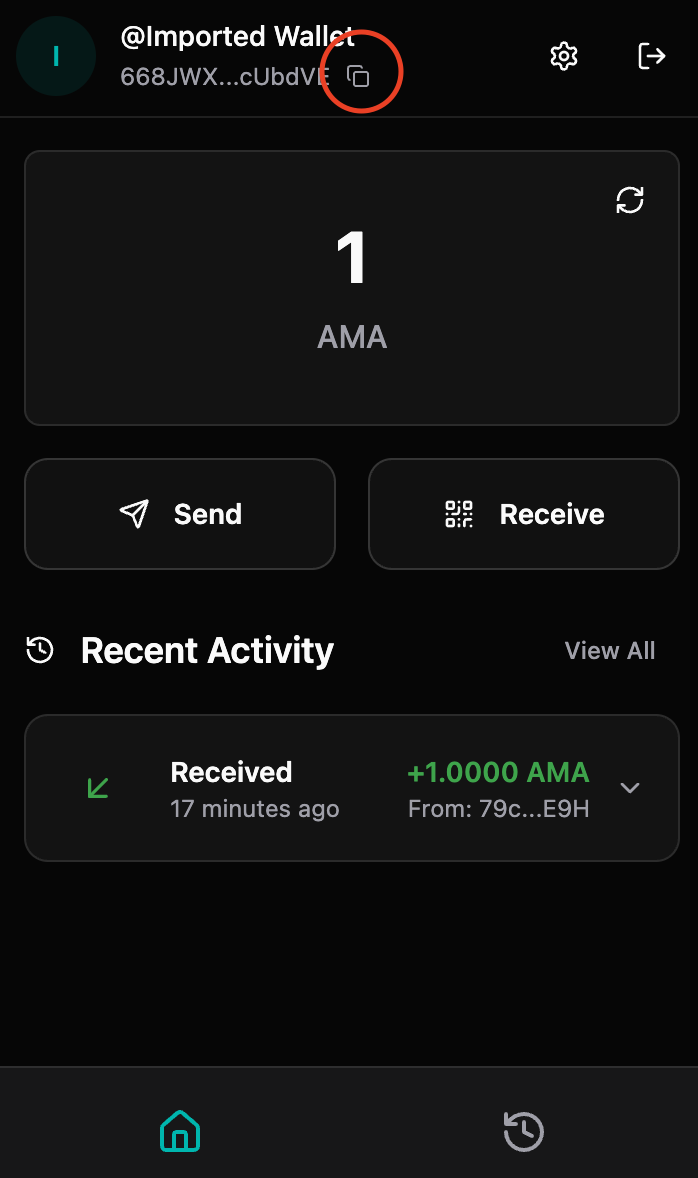
The header shows the active account's name and a shortened address. Click the copy icon next to it (tooltip "Copy public key") to copy the full address.
From the Receive screen
- On the dashboard, click Receive.
- The screen shows a QR code and your full address under Your Wallet Address.
- Click the copy icon next to the address to copy it.
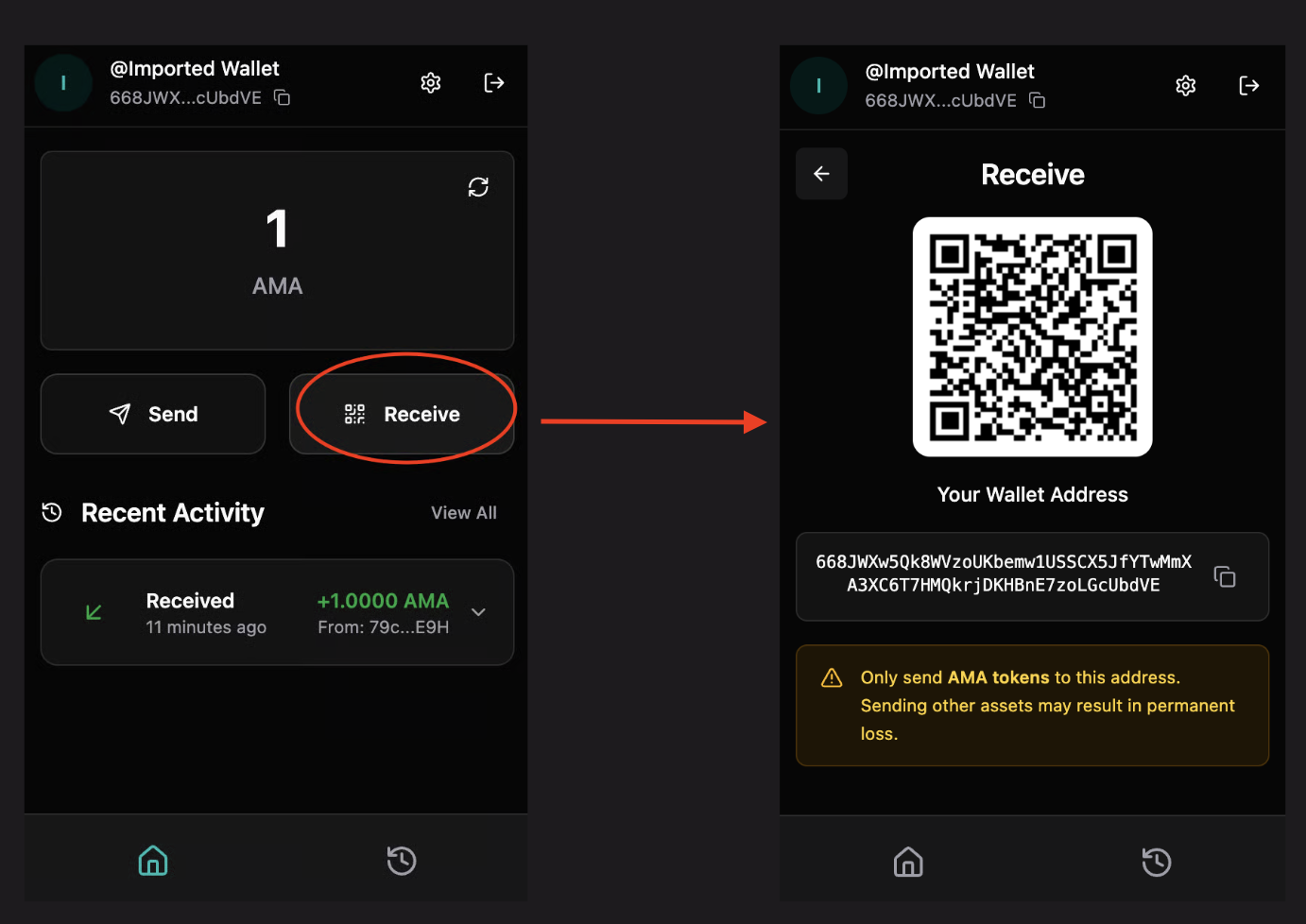
The Receive screen also shows a warning: "Only send AMA tokens to this address. Sending other assets may result in permanent loss."
Share your address
- Copy and paste. Use the copy icon instead of retyping the address. Paste it into a message, email or form.
- QR code. Let the sender scan the QR code on the Receive screen, or send them a screenshot of it. The QR code contains only your address as text. It does not include an amount or a network.
Address format
An Amadeus address is a 48-byte BLS12-381 public key written in Base58. It is 66 characters long. Example:
6Qp4v5CP4sjkyGaEsN9y9fRkyqbtJqxh3xGvPXkquKud3jJqi4WhxhwN2p8R2CiA29
The same address works on Mainnet and Testnet, but each network has its own balances. A payment sent on Testnet only shows up while the wallet is on Testnet.
After the sender pays
You don't need to approve incoming transfers. To check that the payment arrived:
- Look at the balance on the dashboard. While the wallet is unlocked it refreshes about once a minute. Click the refresh icon on the balance card to update it now.
- Look under Recent Activity on the dashboard (it refreshes every 30 seconds) or open the full Transaction history. An incoming transfer is listed as Received, with the amount in green and a plus sign, and
From:followed by the sender's shortened address. - Click the row to expand it. The details include the transaction hash and a View in Explorer icon.
The wallet only lists transactions that are already in a block. It has no "pending" state for incoming transfers.
Mainnet and Testnet
- Mainnet holds real AMA.
- Testnet holds test tokens with no value. You can get some from the Testnet faucet.
The sender and the wallet must use the same network. If a Testnet badge (with a yellow dot) appears under the wallet header, you are on Testnet. To change networks, see Network settings.
Keep your secrets private
Your address is public information. Never share any of these:
- your recovery phrase
- your private key
- your wallet password
- a backup file together with its password (see Backup and restore)
Troubleshooting
The payment doesn't appear
- Check that the wallet is on the same network the sender used, and that the right account is active.
- Ask the sender for the transaction hash and open it in the explorer:
- Mainnet:
https://explorer.ama.one/network/tx/<hash> - Testnet:
https://testnet.explorer.ama.one/network/tx/<hash>
- Mainnet:
- You can also look up your address:
https://explorer.ama.one/network/address/<your address>(use the Testnet explorer for Testnet).
If the explorer shows the transfer to your address and the wallet doesn't, click the refresh icon on the balance card.
The balance card shows "Network unavailable"
The wallet couldn't reach the network's RPC node. Click the refresh icon to retry. If you use a Custom RPC, check the URL in Settings → Active Networks.
The sender says the address is invalid
Copy the address again with the copy icon and check that it is 66 characters long, with no spaces. Sharing the QR code avoids typing mistakes.