7. Transaction History
Read the transaction history of the active account in the Amadeus Wallet extension, open transactions in the explorer and hide amounts.
Overview
The history lists the transactions sent and received by the active account on the current network. Each account and each network has its own history. To see another account's transactions, switch accounts (see Managing accounts). To see Testnet transactions, switch the network (see Network settings).
Open the history
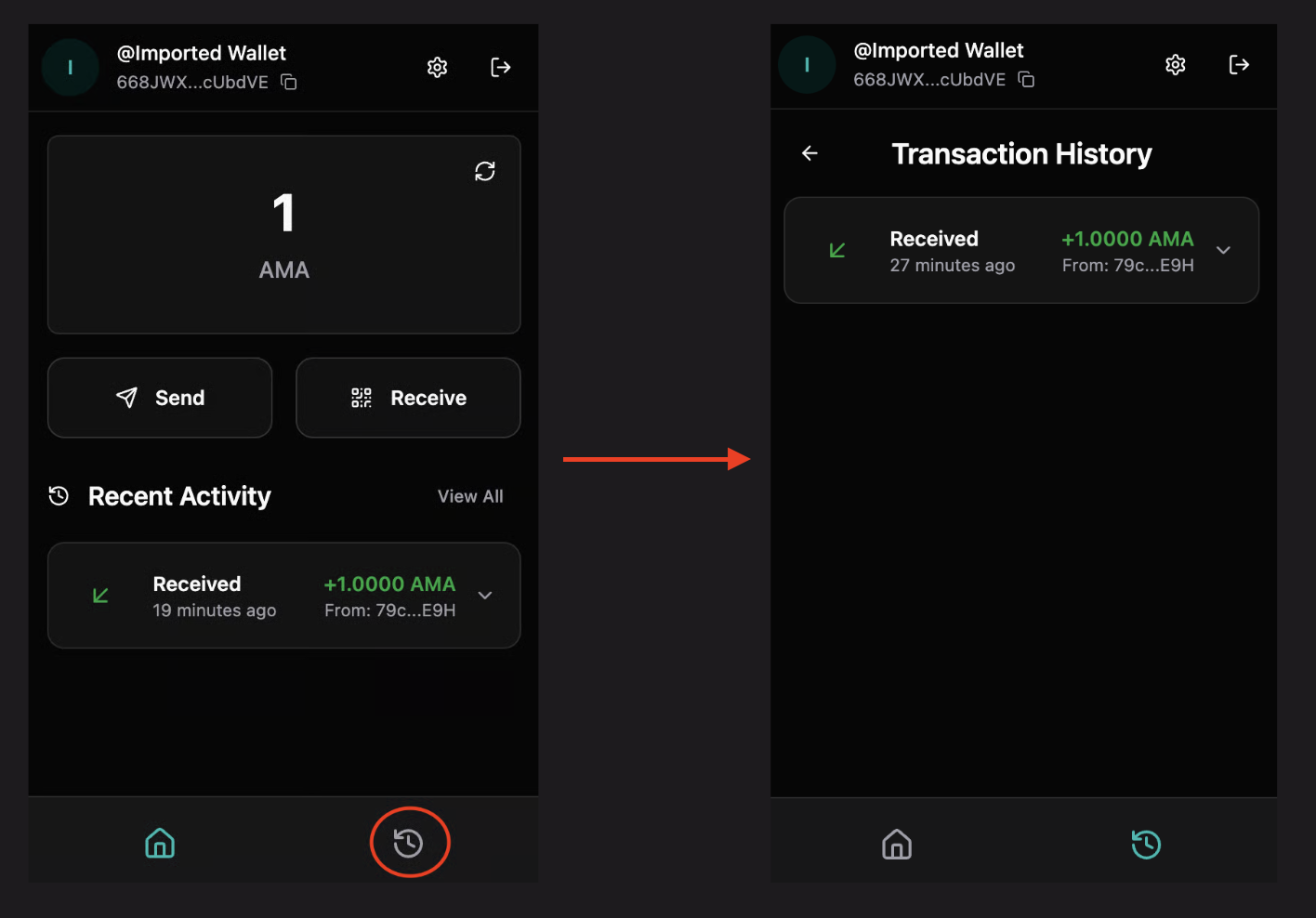
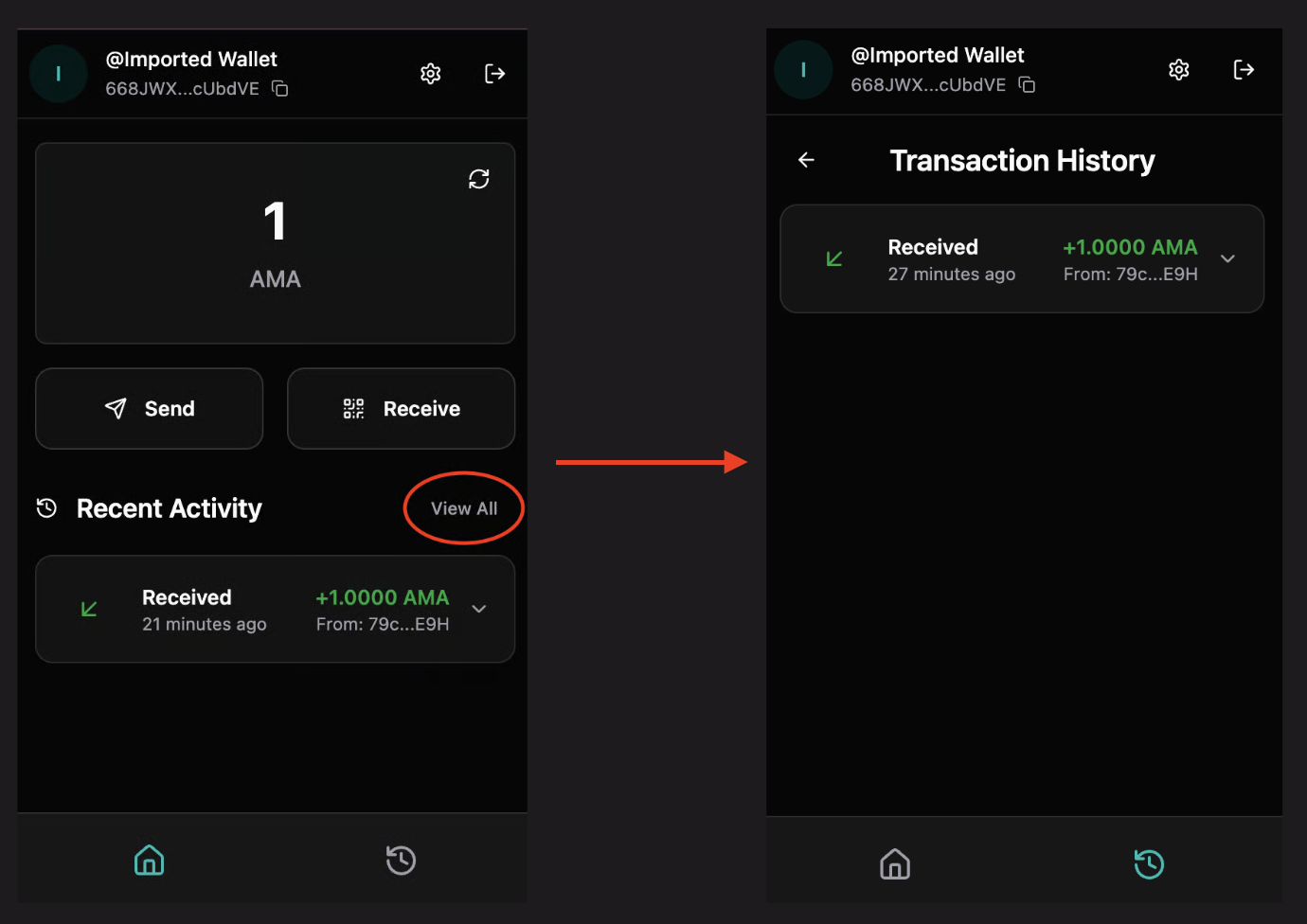
There are two ways in:
- Click the History icon, the rightmost icon in the bottom bar. The bar has three icons: Dashboard, Staking and History.
- On the dashboard, Recent Activity shows your 5 latest transactions. Click View All next to it to open the full history.
The transaction list
The Transaction History screen lists transactions newest first, 20 per page. Use Previous and Next at the bottom to move between pages. The current page number is shown between them. The history has no sorting, filtering or search.
Each row shows:
- an icon and a title that describe the transaction
- how long ago it happened, for example "2 hours ago"
- the amount and the other party, when the transaction has them
| Title | What it is | Amount shown |
|---|---|---|
| Sent | A transfer from this account | Red, with a minus sign, plus To: and the recipient's shortened address |
| Received | A transfer to this account | Green, with a plus sign, plus From: and the sender's shortened address |
| Locked | AMA locked by a lock call | Neutral, with no sign, because the AMA stays in your own vault |
| Unlocked | An unlock call | None |
| Daily check-in | A daily_checkin call | None |
| Other titles | Any other contract call, titled after its function name. For example, creating a staking vault (create) reads "Create" and set_validator reads "Set Validator". | None |
| Failed | A transaction that the network included but that did not succeed | Grey, if the row has an amount. The row is dimmed. |
Transaction details
Click a row to expand it. The details show:
- Transaction Hash: shortened. Hover over it to see the full hash. Use the copy icon to copy it, or the external-link icon (View in Explorer) to open it in the explorer.
- Status: Success or Failed.
- Timestamp: the date and time, for example
Nov 9, 2026 14:03:12. The wallet reads it from the transaction nonce. - Block Slot: the height of the block that included the transaction.
- From: the address that signed the transaction.
- To and Amount: shown only for transfers.
- Contract / Function: for example
Coin / transfer. - Nonce: the raw transaction nonce.
View in the explorer
View in Explorer opens the transaction on the block explorer of the current network. The link format is <explorer>/network/tx/<hash>.
| Network | Explorer |
|---|---|
| Mainnet | https://explorer.ama.one |
| Testnet | https://testnet.explorer.ama.one |
| Custom RPC | The explorer URL you saved with the custom network, or the Mainnet explorer if you didn't save one |
You can also open your whole account at <explorer>/network/address/<your address>. For more about explorer links, see Explorer links.
Transaction fees
There is no flat fee. Each transaction locks a 0.01 AMA budget, pays for its size and the work and storage it uses, and gets the rest back. A transfer to an account that already holds AMA costs about 0.0003 AMA. The ~0.02 AMA shown when you send is a reserve the wallet holds back, not what was charged. The cost does not depend on network load. Half of it goes to the validator that includes the transaction and half is burned. The wallet does not show the fee for each transaction. See Transaction fees.
Hide amounts
The privacy switches are in Settings → Security & Privacy → Privacy:
- Hide Transaction Amounts replaces amounts in the history and in transaction details with
******. - Hide Balances does the same for the dashboard balance, the Staked and Prime Points rows and the Staking tab.
Turn them on before you share your screen or take screenshots.
Troubleshooting
A transaction is missing
- Check that the right account is active and the wallet is on the right network.
- Open the transaction hash in the explorer. If the explorer doesn't know the hash, the transaction never reached the network.
- If you use a Custom RPC, the history comes from that node. By default a node keeps only the last 10 epochs of history unless it runs as an archival node, so older transactions may be missing. Switch back to Mainnet to compare.
Amounts show as ******
Hide Transaction Amounts is on. Turn it off in Settings → Security & Privacy.
A transaction shows as Failed
The network included the transaction, but it did not succeed. Open it in the explorer to see more.