Web Wallet
Create, import and use the Amadeus web wallet at wallet.ama.one, and import your node's key to collect rewards.
The web wallet at https://wallet.ama.one runs in your browser with nothing to install. Each wallet is an encrypted vault file (.json) that you download and keep, protected by a password you choose. Your private key never leaves the browser.
The web wallet works with a 64-byte private key (called a seed, or Seed64). It does not use 12-word recovery phrases and cannot open the .amadeus backups made by the mobile app or the Chrome extension. If you have a recovery phrase, use one of those wallets instead.
Creating a Wallet (Step-by-Step Guide)
Creating a wallet takes a few minutes. Follow these steps carefully so your wallet is set up securely.
Prerequisites
- A modern web browser
- A safe place to store your vault file and your private key
- A strong password that you can remember
Step 1: Access the Wallet Application
- Open your web browser
- Go to https://wallet.ama.one
- The welcome screen shows two options:
- Create New Wallet
- Import Existing Wallet (see Importing an Existing Wallet)
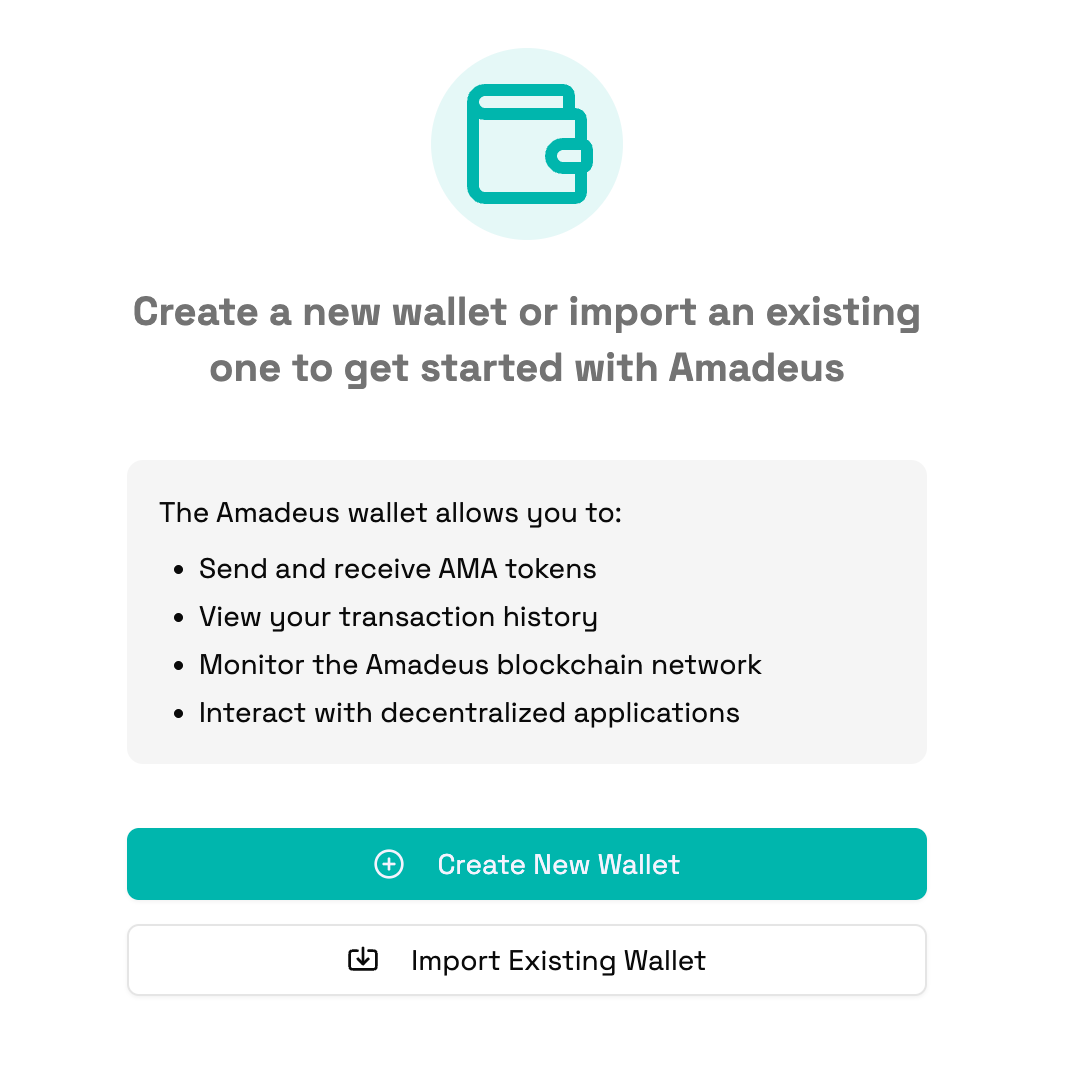
Step 2: Begin Wallet Creation
- Click Create New Wallet
- The creation wizard has three steps:
- Enter Wallet Name
- Configure Seed
- Create Vault
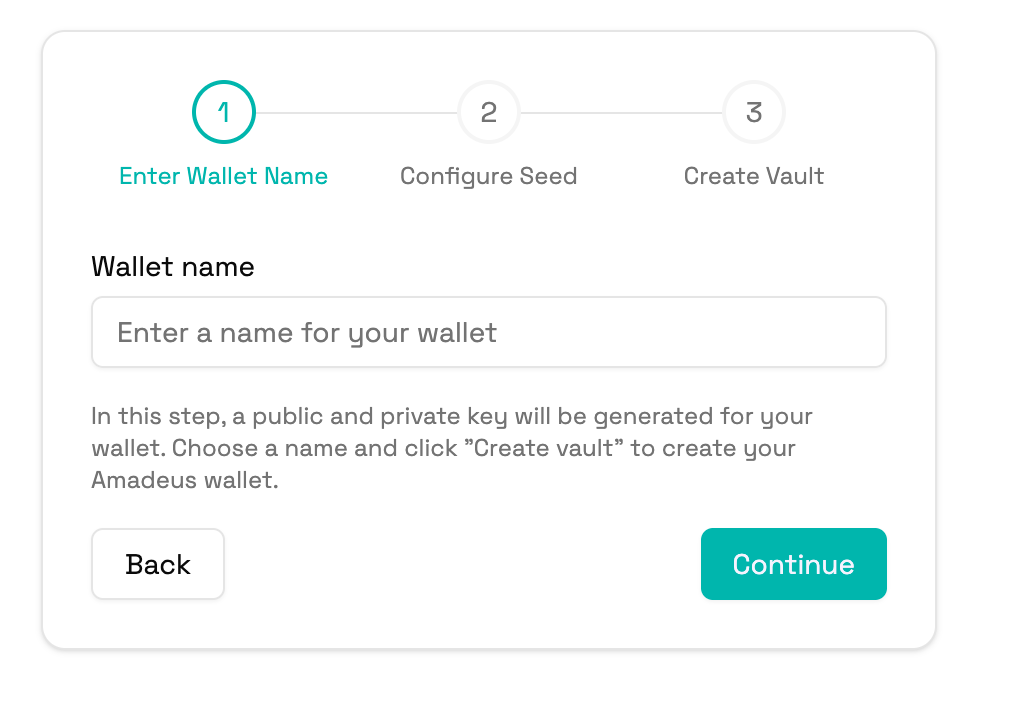
Step 3: Enter Wallet Name
- Wallet name: enter a name for your wallet
- It is only for your reference, for example "Main Wallet" or "Node Rewards"
- The name is also used for the vault file name (see Step 7)
- Click Continue
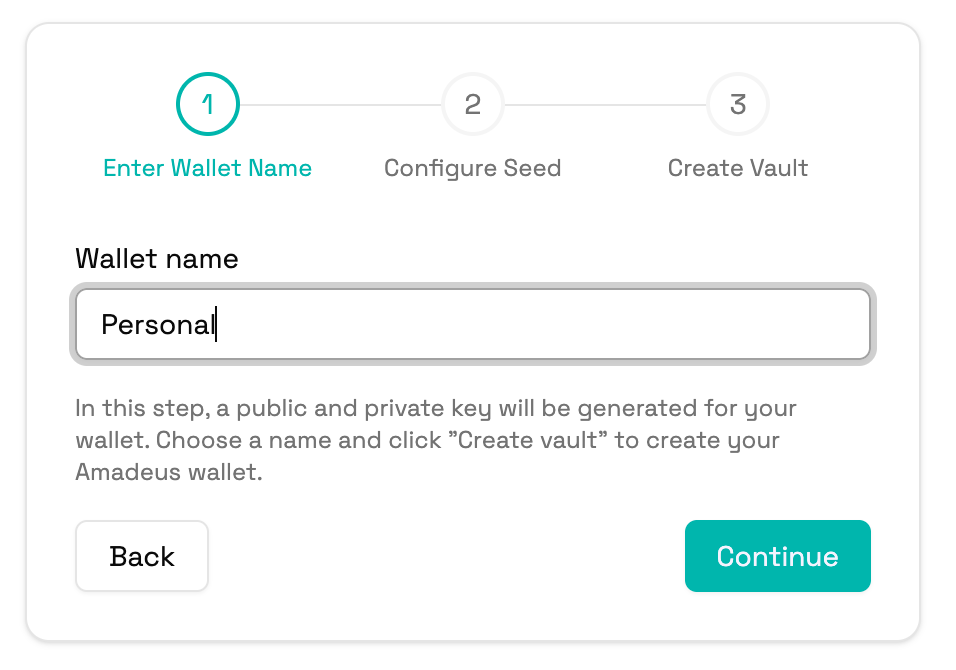
Step 4: Configure Your Seed
This is the most important step. Your seed is the private key that controls your funds.
Understanding Seeds
- Seed64: a 64-byte (512-bit) secret
- Format: Base58-encoded string, usually 87-88 characters
- Purpose: your wallet's public key (address) is derived from it
- Security: anyone with this string controls your funds. Never share it.
Automatic Seed Generation (Recommended)
- The wallet generates a random seed for you
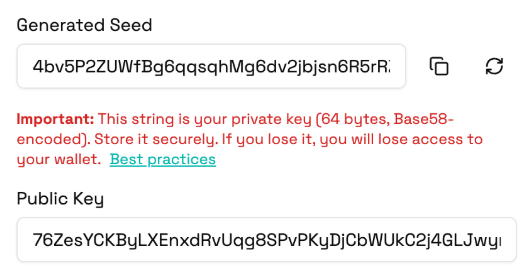
- It appears in the Generated Seed field
- Important: copy it now and store it securely
- Use the copy button next to the field to copy it
- The refresh button (Regenerate Seed) creates a different seed if you want one
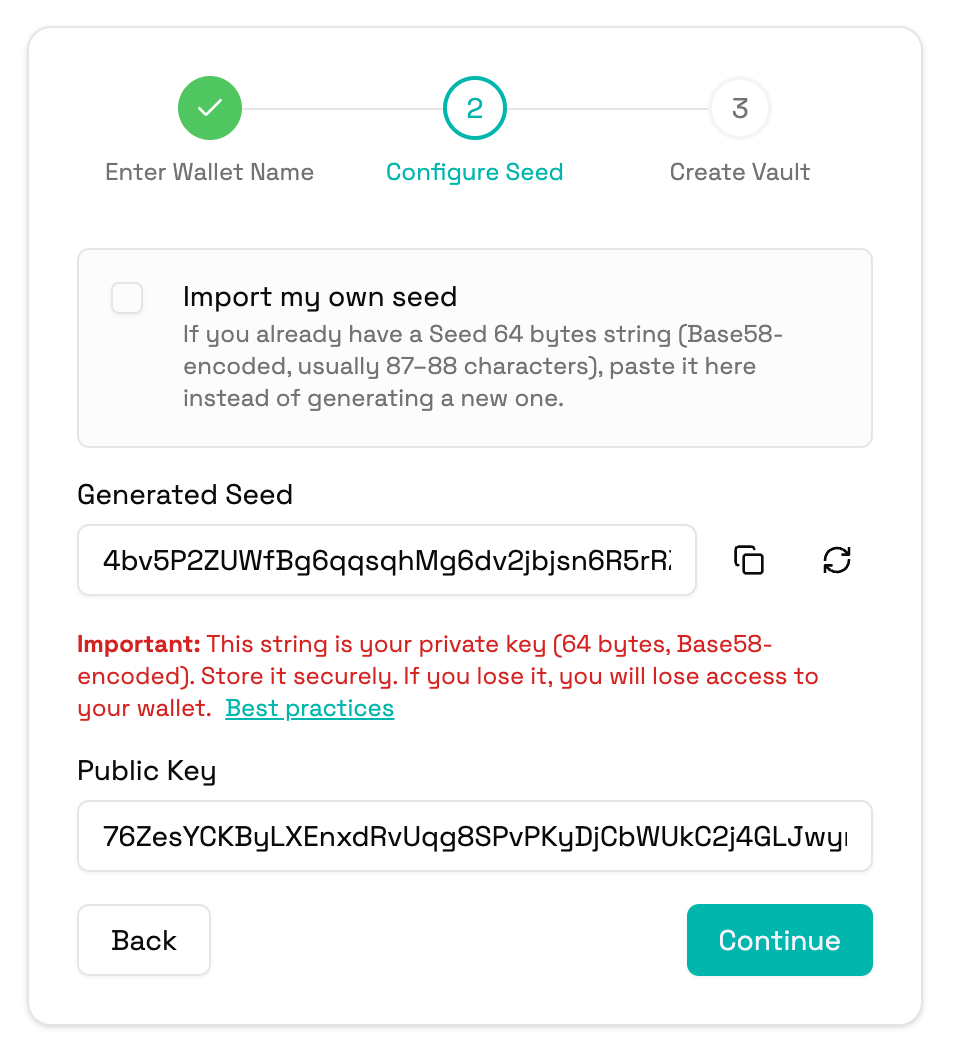
Using Your Own Seed (Advanced)
- Tick the Import my own seed checkbox
- Paste your Seed64 into the Your Seed64 field
- The wallet derives and shows the matching public key
- Use this to recover a wallet or to import a key you created elsewhere, such as your node's key
The seed must decode to exactly 64 bytes, or the wallet shows "Seed must be a valid base58 string representing 64 bytes".
Security Best Practices for Seeds
- Never share your seed with anyone
- Keep more than one copy, in separate safe places
- Good options: a password manager, an encrypted USB drive, or paper in a safe
- Never store it in email, unencrypted cloud storage, screenshots or plain text files
Step 5: Review Your Public Key
- On the same step, the Public Key field shows your public key
- It is derived from your seed with BLS12-381 cryptography
- This is your wallet address: share it to receive tokens
- Format: Base58-encoded string, usually 65 or 66 characters (a 48-byte BLS public key)
Step 6: Create Your Vault
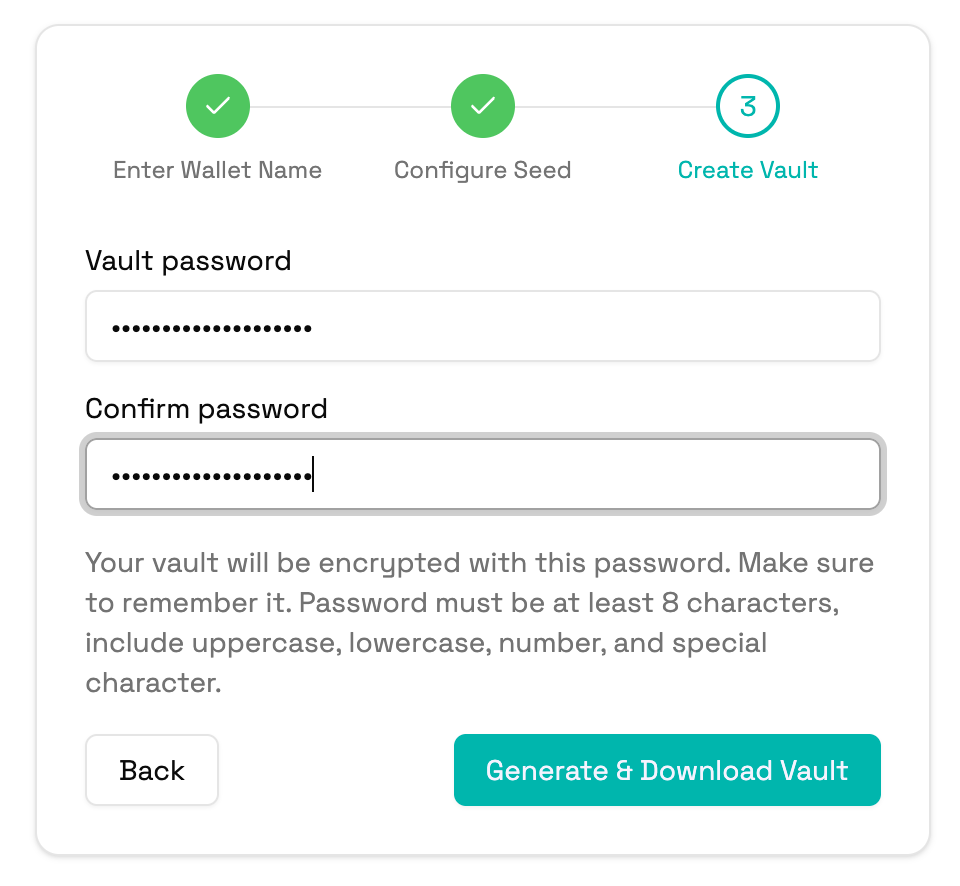
The vault is an encrypted file that holds your wallet.
Setting Your Vault Password
- Enter a Vault password. It must have:
- At least 8 characters
- An uppercase letter (A-Z)
- A lowercase letter (a-z)
- A number (0-9)
- A special character (any character that is not a letter or number)
- Enter it again in Confirm password
How the Vault Is Protected
- Encryption: AES-256-GCM
- Key derivation: PBKDF2 with SHA-256 and 100,000 iterations
- Salt and IV: random values generated for each vault
- Security: your seed is never stored in plain text
There is no password reset. If you forget the vault password, you can only get back in by importing your seed again.
Step 7: Download Your Vault File
- Click Generate & Download Vault
- Your browser downloads a JSON file and the wallet unlocks
- File name: your wallet name in lowercase, with spaces and other special characters replaced by
_, plus.json(for example, "Main Wallet" becomesmain_wallet.json) - Critical: keep this file somewhere safe. You need it, or your seed, to open the wallet again.
Vault File Contents
The vault file contains:
walletName: the wallet nameencryptedData: your public key and seed, encryptedsaltandiv: the values needed to decrypt it with your passwordcreatedAt: the creation time- Nothing sensitive in plain text
Step 8: Wallet Creation Success
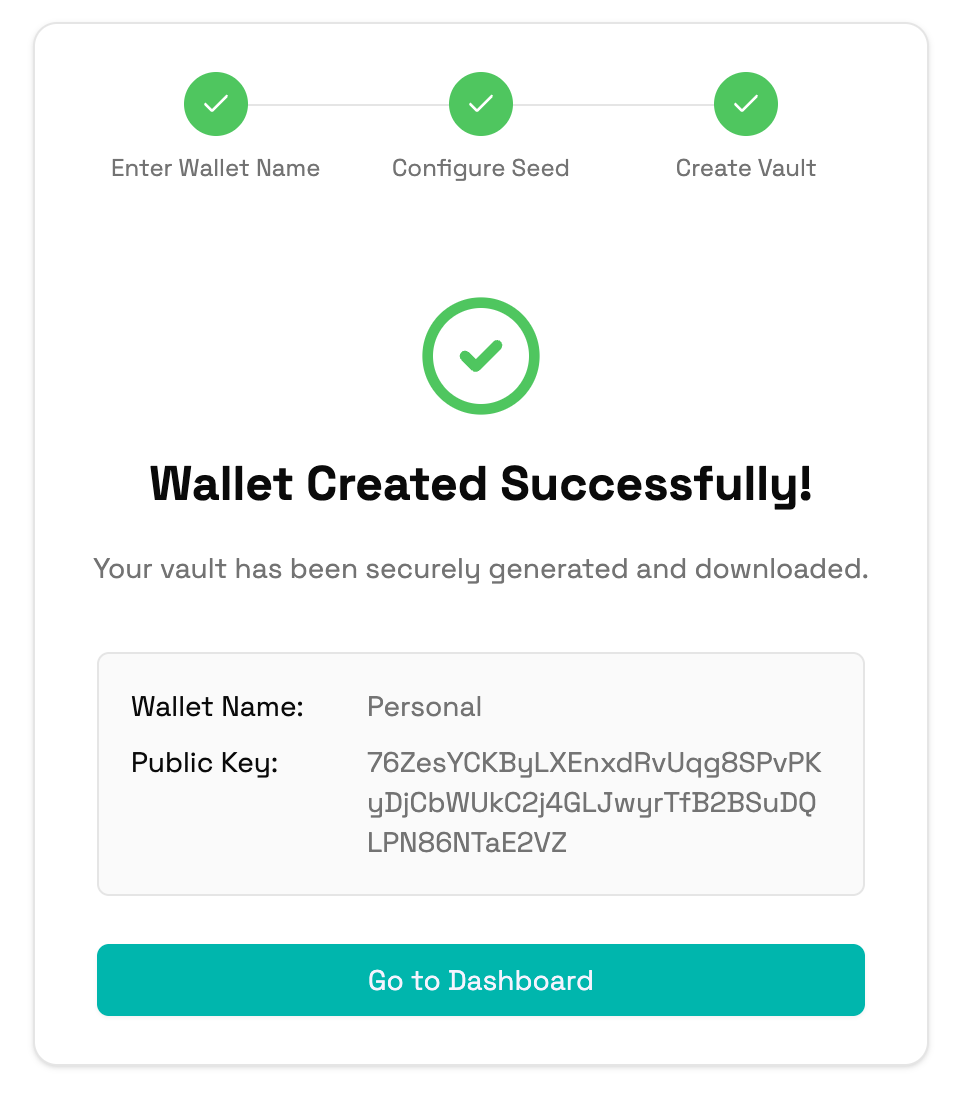
- You see Wallet Created Successfully!
- Your wallet name and public key are shown
- Click Go to Dashboard to open your wallet
Importing an Existing Wallet
On the welcome screen, click Import Existing Wallet. The Import Wallet dialog offers two methods.
Vault File
Use this to open a vault file you downloaded earlier.
- Click Vault File
- Click Select Vault File and choose your
.jsonvault file - Enter the vault Password
- Click Unlock Wallet
If the password is wrong or the file is damaged, the wallet shows "Incorrect password or corrupted vault."
Private Key / Seed
Use this to import a 64-byte Base58 seed, for example a backup of your seed or your node's key.
- Click Private Key / Seed
- Paste the seed into Private Key / Seed. The field is masked; use the eye button to show it.
- Check the Derived Public Key, then click Continue
- Enter a Wallet Name, a Vault Password and Confirm Password (same password rules as above)
- Click Import & Download Vault. The wallet downloads a new vault file for this seed and opens the dashboard.
Download and Install
The web wallet is a website, so there is nothing to install.
- Direct access: visit https://wallet.ama.one
- Bookmark it and always open the wallet from your bookmark, so you never type your password into a look-alike site
- Mobile: the web wallet also works in mobile browsers. For a native app, see the mobile wallet.
Generating a New Wallet
Quick Generation Guide
- Visit: https://wallet.ama.one
- Click: Create New Wallet
- Enter: a wallet name
- Copy: your generated seed and store it safely
- Create: a strong vault password
- Download: your vault file (Generate & Download Vault)
- Done: go to your dashboard
Using an External Seed
If you generate a seed yourself, it must:
- Be exactly 64 bytes (512 bits), Base58-encoded
- Come from a cryptographically secure random source
Paste it with Import my own seed (Step 4) or with Import Existing Wallet → Private Key / Seed.
Your Session and Locking
- When you create, import or unlock a wallet, it stays unlocked while you use it. Each interaction extends the session.
- After a period without activity the wallet locks. The default is 30 minutes; change it in Settings → Auto Lock (see Settings).
- When the session expires, the wallet locks and returns to the welcome screen. To open it again, click Import Existing Wallet → Vault File, select your vault file and enter your password (or import your seed).
- Closing the browser tab also locks the wallet. Reloading the page keeps an active session.
- The Log out button in the header locks the wallet and clears it from this browser.
Receiving and Sending AMA Tokens
Receiving Tokens
Step 1: Find Your Address
- Open your wallet at https://wallet.ama.one
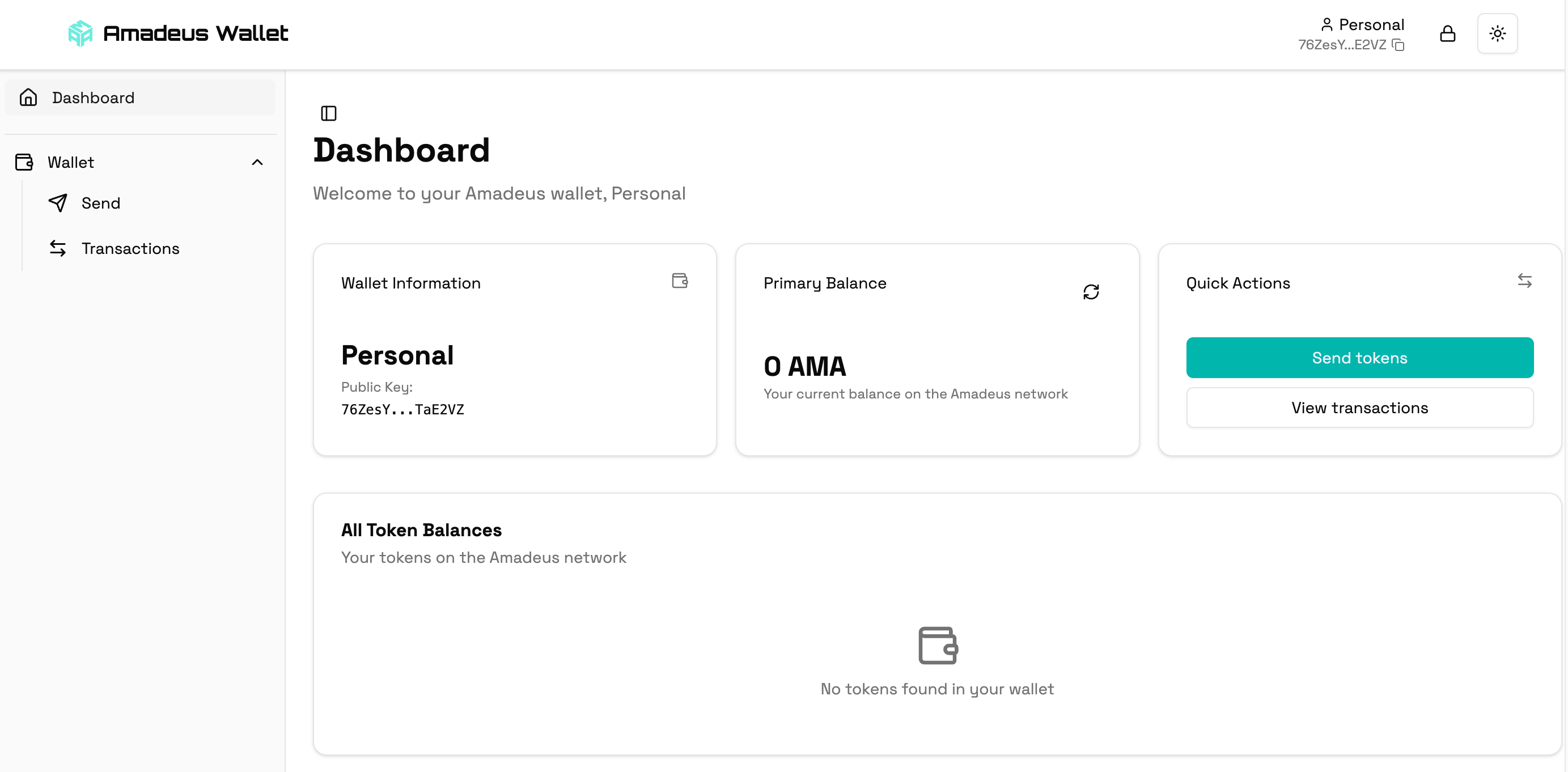
- Your public key (wallet address) is shown in the Wallet Information card on the Dashboard, and in the header on wider screens
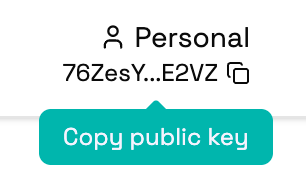
- Click the copy button (Copy public key) next to it
Step 2: Share Your Address
Send your public key to the sender by message, email or in person. Share only the address, never the seed or vault password. The web wallet does not show a QR code; the mobile wallet does.
Step 3: Confirm Receipt
- Balances refresh automatically every minute. Use the refresh button on the Primary Balance card to update right away.
- Incoming transfers appear under Transactions
Sending Tokens
Step 1: Open Send
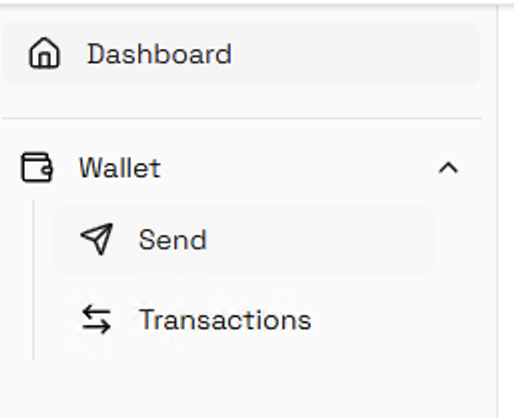
- Click Send tokens on the Dashboard, or Wallet → Send in the sidebar
Step 2: Enter Transaction Details
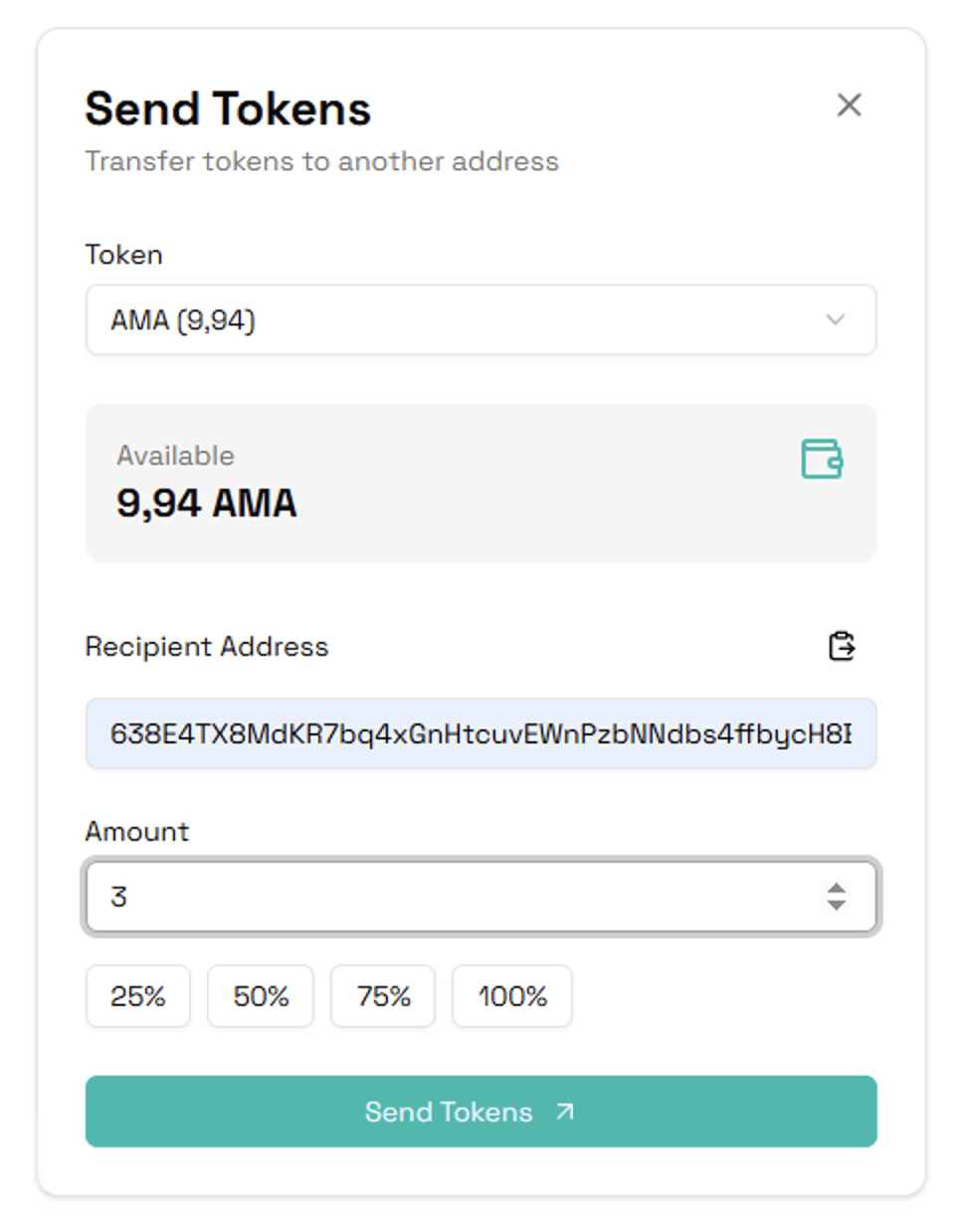
- Token: choose the token to send. The list shows your balance of each token. PRIME (Prime Points) cannot be sent.
- Available: the balance of the selected token
- Recipient Address: paste the recipient's Amadeus address (or use the paste button)
- It must be a valid Base58 address that decodes to 48 bytes
- Transactions cannot be reversed, so check the address carefully
- If the address is on the Amadeus malicious-address list (always read from mainnet), a Flagged address warning appears and the button changes to Send anyway. Do not send unless you are certain.
- Amount: enter the amount, or use the 25%, 50%, 75% or 100% buttons
- Up to 9 decimal places
- For AMA, the wallet keeps back 0.02 AMA for the network fee, so you cannot send your entire balance. 100% fills in your balance minus 0.02 AMA, and the other buttons are shares of that amount. A larger amount shows "Amount exceeds available balance after fees", or "Insufficient balance" if it is more than your whole balance (see Transaction Fees)
- For other tokens, 100% is your full balance of that token, but the account still needs at least 0.02 AMA for the fee. Otherwise you see "Not enough AMA to cover the ~0.02 AMA network fee"
Step 3: Send
- Check the recipient (compare the first and last characters) and the amount
- Click Send Tokens
- The transaction is signed in your browser and submitted to the network
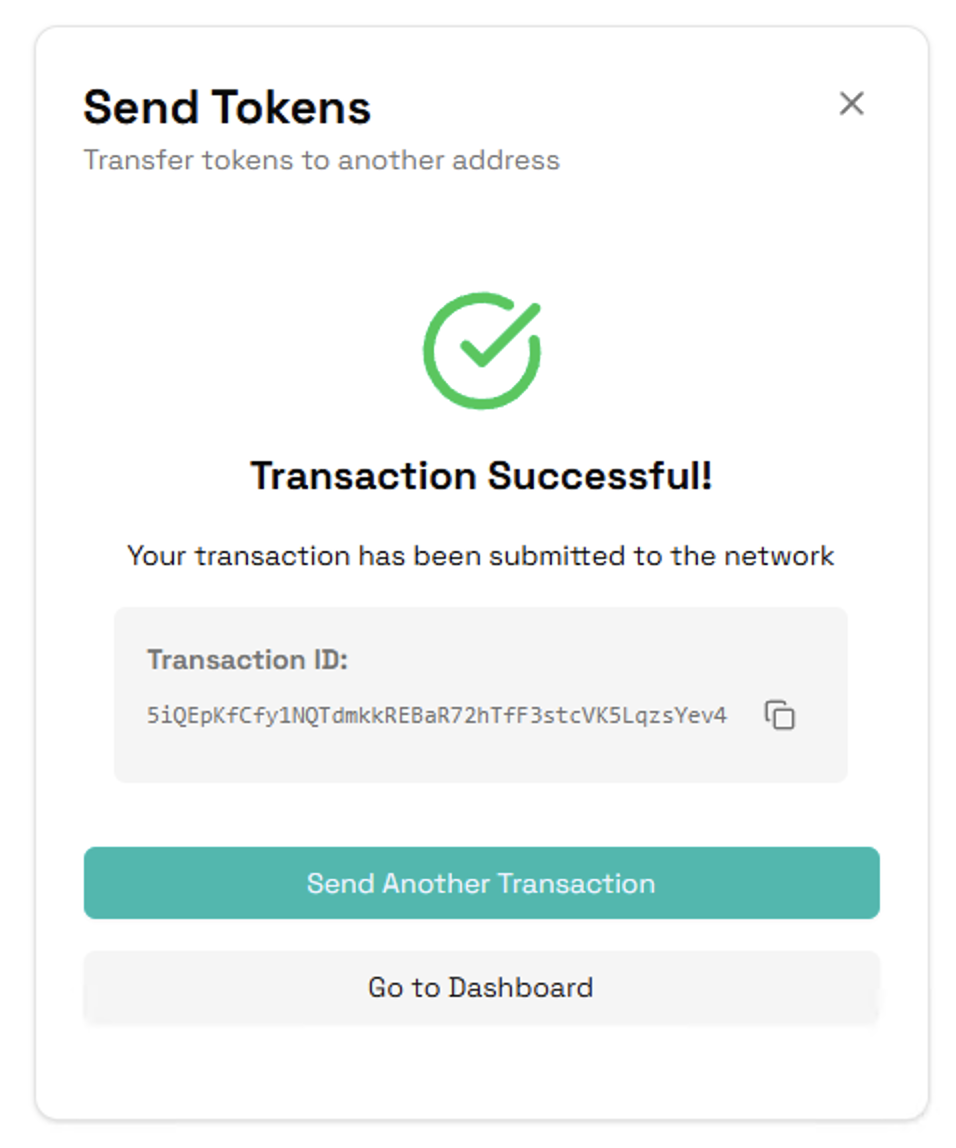
Step 4: Transaction Confirmation
- Transaction Successful! shows:
- The Transaction ID (hash), with a copy button
- A link to the transaction in the explorer
- Send Another Transaction and Go to Dashboard
- If the transaction fails, Transaction Failed shows the error message
Transaction Fees
Every transaction pays a network fee, deducted from your AMA balance. The network calculates it from the transaction's size and the work and storage it uses, and you cannot change it. The fee is always paid in AMA, even when you send another token, so keep some AMA in your wallet. Half of every fee goes to the validator that includes the transaction and half is burned.
The wallet keeps back 0.02 AMA on top of the amount you send, and needs that much AMA in the account to send any other token. This is a reserve, not what the network charges: the network locks a budget of 0.01 AMA for each transaction and refunds what it does not use. A transfer to an account that already holds AMA costs about 0.0003 AMA. See Transaction fees.
Transaction History
Wallet → Transactions lists your transactions, 20 per page, with three tabs:
- All: every transaction of your wallet
- Transfers: token transfers sent or received
- Submit Solution Transactions: solutions your address submitted to the Epoch contract (for node operators)
Each row shows the contract, method, type, amount, hash, signer, date and status. The Dashboard also shows your most recent transactions.
Staking
Wallet → Staking shows the AMA you have locked in staking vaults:
- Total staked: principal plus the yield already added to your vaults, with Principal, Yield earned, Average APY and Est. yearly
- Vaults: one row per vault with its tier, staked amount, APY, the validator it backs and its status (for example "Unlocks in ~N days", "Matured" or "Unlocking")
The web wallet shows your stake but does not create or unlock vaults.
Settings
Open Settings in the sidebar.
- Network & RPC Configuration: choose Mainnet, Testnet or Custom RPC. For Custom RPC, enter an RPC Endpoint and, optionally, an Explorer URL, then click Save Custom RPC. On Testnet, Open Faucet links to the testnet faucet at https://mcp.ama.one/testnet-faucet.
- Privacy: Hide Balances hides all token balances; Hide Transaction Amounts hides amounts in your history.
- Wallet Preferences: Default Token sets the token shown as your primary balance.
- Appearance: Theme can be Light, Dark or System.
- Auto Lock: Session Duration can be 5 minutes, 15 minutes, 30 minutes (default), 1 hour, 2 hours, 4 hours or Never (until manually locked).
- Security: Reveal Seed Phrase shows your 64-byte seed. Enter your vault password, then hold the button for 3 seconds to reveal it.
Connecting Your Wallet to Mining
When you run an Amadeus node, it creates its own key the first time it starts. Rewards for your node are credited to that key's address, unless you have set an emission address for the node, in which case they go to that address. To see and spend the rewards held by the node's key, import the key into the web wallet.
Prerequisites
- An Amadeus node that has started at least once (see Running a node)
- Terminal access to the machine running the node
Step-by-Step: Import Your Node's Key
Step 1: Locate the Key File
The node keeps its data in its work folder: the WORKFOLDER environment variable if you set it, otherwise ~/.cache/amadeusd/. The key is in the seeds file in that folder.
-
Open a terminal on the node machine
-
Go to the work folder:
cd ~/.cache/amadeusd/If you set
WORKFOLDER, usecd "$WORKFOLDER"instead. -
Display the key:
cat seeds -
Copy the key. Each line of
seedsis one 64-byte Base58 key. A new node writes a single line. If the file has several lines, each line is a separate key with its own address.
Older nodes stored the key in a file named sk. If sk exists and seeds does not, the node copies sk to seeds when it starts, so seeds is the file to use. Older guides that point to ~/.cache/amadeus/sk (without the d) are wrong.
Step 2: Import It into the Web Wallet
- Go to https://wallet.ama.one
- Click Import Existing Wallet, then Private Key / Seed
- Paste one line from the
seedsfile and check the Derived Public Key - Enter a wallet name (for example "Node Rewards") and a vault password
- Click Import & Download Vault
You can also use Create New Wallet and tick Import my own seed in Step 4.
Security Considerations
- The
seedsfile contains your node's private key - Back it up right away so you cannot lose access to the rewards
- Never share its contents
- Store it securely, the same way as any wallet seed
Backing Up Your Node's Key
# Copy the key file to a dated backup
cp ~/.cache/amadeusd/seeds ~/amadeus_seeds_backup_$(date +%Y%m%d).txt

# Only your user can read the backup
chmod 600 ~/amadeus_seeds_backup_*.txt
Move the backup off the server to a safe place.
Verifying Your Node Wallet
- After importing, the public key in the wallet should match your node's address
- The balance shows the rewards held by that address
- Transactions lists its history; the Submit Solution Transactions tab shows the solutions it submitted
You can also check the balance and the emission address from the command line. Replace <public_key> with the node's address:
curl -s https://mainnet-rpc.ama.one/api/wallet/balance/<public_key>
# {"error":"ok","balance":{"float":2868.391796012,"symbol":"AMA","flat":2868391796012}}

curl -s https://mainnet-rpc.ama.one/api/epoch/get_emission_address/<public_key>
# {"error":"ok","emission_address":null}
emission_address is null when rewards go to the node's own address.
Alternative: Using Multiple Wallets
You can also:
- Keep the node wallet separate from your main wallet
- Transfer rewards from time to time to your main wallet
- Use the node wallet only for node operations
Troubleshooting
Cannot Find the seeds File
- Make sure the node has started at least once
- Check the path:
~/.cache/amadeusd/, or the folder inWORKFOLDERif you set it - Check that your user can read the folder
Import Fails
- Paste exactly one line from the file
- Remove extra spaces or line breaks
- The key must be valid Base58 and decode to 64 bytes
No Rewards Showing
- Rewards are credited at the end of each epoch
- If the node has an emission address, the rewards go to that address, not to the node's own key
- Check that the node is running and in sync (see Running a node)
Next Steps
- Watch your rewards on the dashboard
- Keep backups of the
seedsfile - Move rewards to your main wallet when you want
- Review the security practices below for both wallets
Security Best Practices
Essential Security Measures
1. Seed Protection
- Never share your seed with anyone
- Never enter your seed on a site you did not open from your bookmark
- Store copies offline in more than one safe place
- Encrypt any digital backup
2. Vault File Security
- Keep a backup of the vault file, separate from your seed backup
- Encrypt the vault file before storing it in the cloud
- Use a unique password for each vault
3. Password Management
- Use a strong, unique vault password
- Store it in a password manager
- Never reuse it on other services
4. Device Security
- Keep your browser up to date
- Avoid public Wi-Fi when you send transactions
- Log out on shared computers
- Use a dedicated device for large holdings
Operational Security (OpSec)
Public Information
Safe to share:
- ✅ Your public key (wallet address)
- ✅ Transaction IDs
Never share:
- ❌ Your seed or private key
- ❌ Your vault password
Phishing Protection
- Bookmark https://wallet.ama.one and use the bookmark
- Check the address bar before you enter a password
- Ignore messages that ask for your seed. Nobody from Amadeus will ever ask for it.
- Report phishing to the community moderators on Discord
Recovery Planning
- Keep at least two copies of your seed and your vault file, on different media, with one stored in a different place
- Test your backup: import it with Import Existing Wallet before you rely on it
- Make sure someone you trust knows how to find your backups in an emergency
FAQs (Wallet Section)
General Questions
Q: Is the web wallet free to use? A: Yes. Creating and using a wallet is free. Each transaction pays a network fee in AMA (see Transaction Fees).
Q: Can I create multiple wallets? A: Yes. Each wallet has its own seed and vault file. The web wallet opens one wallet at a time: log out and import another vault file to switch. The mobile app and the Chrome extension hold several accounts at once.
Q: What browsers are supported? A: Current versions of the major desktop and mobile browsers.
Q: Can I use a 12-word recovery phrase? A: No. The web wallet only accepts a 64-byte Base58 seed. Restore a recovery phrase in the mobile app or the Chrome extension.
Security Questions
Q: Where is my private key stored? A: Encrypted inside your vault file. While the wallet is unlocked, the key is kept encrypted in the browser tab's session storage and decrypted only to sign. It is never sent to a server.
Q: What happens if I lose my vault password? A: There is no password reset. If you have your seed, import it again and choose a new password. Without the seed, the funds cannot be recovered.
Q: What does the wallet send over the network? A: Your seed and password never leave the browser. To read balances and history and to submit signed transactions, the wallet talks to the RPC node of the selected network. It also downloads the malicious-address list from the mainnet RPC to warn you about flagged recipients.
Q: Can the Amadeus team access my wallet? A: No. The wallet is non-custodial. Only you have your seed.
Technical Questions
Q: What cryptography does the wallet use? A:
- Keys and signatures: BLS12-381
- Vault encryption: AES-256-GCM
- Key derivation: PBKDF2 with SHA-256 (100,000 iterations)
- Transaction hashes: SHA-256
Q: What is the wallet session timeout? A: 30 minutes by default. Activity extends the session. Change it in Settings → Auto Lock. After it expires, open the wallet again with your vault file and password.
Q: Can I adjust transaction fees? A: No. The network calculates the fee for each transaction.
Q: What's the difference between the seed and the private key? A: The seed is 64 bytes. The wallet reduces it to a 32-byte BLS secret key that signs your transactions. The seed is the secret you back up.
Troubleshooting
Q: My balance isn't updating A:
- Check your internet connection
- Click the refresh button on the Primary Balance card
- Check that you are on the right network in Settings
- Check that the transaction was sent to the correct address
Q: I can't unlock my wallet A:
- Make sure you are using the right vault file
- Check your password (and Caps Lock)
- Upload the vault file again with Import Existing Wallet → Vault File
- If the file is damaged, import your seed with Private Key / Seed
Q: Transaction failed A:
- Check the recipient address
- Check that you have enough AMA for the amount plus the 0.02 AMA the wallet keeps back (see Transaction Fees)
- Make sure the wallet is unlocked
- Try again after a few moments
Q: My node rewards don't show up A:
- Import the key from the node's
seedsfile (see Connecting Your Wallet to Mining) - Check whether the node has an emission address; rewards then go to that address
- Make sure the node is running and in sync
Other Amadeus Wallets
Q: Is there a mobile app or a browser extension? A: Yes. The mobile wallet is on the App Store and Google Play, and the Chrome extension is on the Chrome Web Store. Both support recovery phrases, several accounts and dApp connections.